How do I login to Zoom for the first time?
How to join a Zoom meeting on a web browser
Web
Google Chrome
- Open the Chrome browser.
- Go to join.zoom.us.
- Enter your meeting ID 874 2568 7881
- Click Join.
- If this is your first time joining from Google Chrome, you will be asked to open the Zoom desktop client to join the meeting.
- (Optional) Select the Always open these types of links in the associated app check box to skip this step in the future.
- In the pop-up window, click Open Zoom Meetings (PC) or Open zoom.us (Mac)

Safari
- Open Safari.
- Go to join.zoom.us.
- Enter your meeting ID 874 2568 7881
- Click Join.
- When asked if you want to open zoom.us, click Allow.
Microsoft Edge or Internet Explorer
- Open Edge or Internet Explorer.
- Go to join.zoom.us.
- Enter your meeting ID 874 2568 7881
- Click Join.
Mozilla Firefox
- Open Firefox.
- Go to join.zoom.us.
- Enter your meeting ID 874 2568 7881
- Click Join.
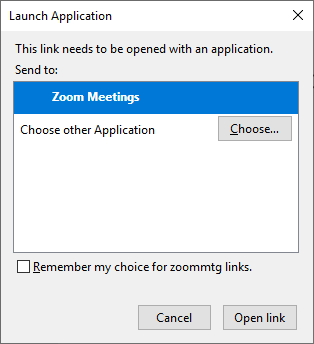
- If this is your first time joining from Firefox, you may be asked to open Zoom or the Zoom installer package.
- To skip this step in the future, select the Remember my choice for zoommtg links check box.
- Click Open Link.
Android
- Open the Zoom mobile app.
- Join a meeting using one of these methods:
- Tap Join a Meeting if you want to join without signing in.
- Sign in to Zoom then tap Join.

- Enter the meeting ID number 874 2568 7881 and your display name
- If you’re signed in, change your name if you don’t want your default name to appear.
- If you’re not signed in, enter a display name.
- Select if you would like to connect audio and/or video and tap Join Meeting.
iOS
- Open the Zoom mobile app. If you have not downloaded the Zoom mobile app yet, you can download it from the App Store.
- Join a meeting using one of these methods:
- Tap Join a Meeting if you want to join without signing in.
- Sign in to Zoom then tap Join.
- Enter the meeting ID number 874 2568 7881 and your display name|
- If you’re signed in, change your name if you don’t want your default name to appear.
- If you’re not signed in, enter a display name.
- Select if you would like to connect audio and/or video and select Join.